Create a company onboarding link
There are two methods you can use to create company onboarding links.
- Run an API mutation to create a unique onboarding link for each future company account holder.
- Use a public URL from your Dashboard to share the same company onboarding link with all of your users.
Use public links with caution. Those with fraudulent intent can use these public links to complete multiple onboardings, and if this happens undetected, they'll have multiple accounts in your project.
Unique links using the API
Create a unique company onboarding link for each user with the API.
- Call the
createCompanyAccountHolderOnboardingmutation. - Enter information for all required API fields for the account country, as noted in country requirements for company accounts.
- Start with
accountInfo(account country and optional name). - Add
accountAdmindetails (email, language, type of representation). - Add the
companyobject with business details andrelatedIndividuals.
- Start with
- Include optional fields as needed for your use case (such as
accountInfo.nameoroAuthRedirectParameters). - Add optional messages to the success payload, either for validation or in case of rejection.
The previous onboardCompanyAccountHolder mutation is deprecated.
Deprecated mutations will be removed in December 2026.
Use createCompanyAccountHolderOnboarding for all new integrations.
For companies in France, use the companyInfoRegistryData query with the company's registration number to retrieve data from the National Business Register (RNE). Pass the results to the mutation to pre-fill company fields.
Mutation
Open in API Explorermutation CreateCompanyOnboarding {
createCompanyAccountHolderOnboarding(
input: {
accountInfo: {
country: ESP
}
accountAdmin: {
email: "alberto.moreno@mimarca.io"
preferredLanguage: es
typeOfRepresentation: LegalRepresentative
}
company: {
name: "MiMarca"
businessActivity: Construction
businessActivityDescription: "Historical restoration"
registrationNumber: "123456789"
monthlyPaymentVolume: Between10000And50000
address: {
addressLine1: "21 Barrio de San Roque"
city: "Barcelona"
country: "ESP"
postalCode: "08005"
}
taxIdentificationNumber: "Y1234567Z"
relatedIndividuals: [
{
type: LegalRepresentativeAndUltimateBeneficialOwner
firstName: "Sofia"
lastName: "Ramos"
sex: Female
birthInfo: {
birthDate: "1990-03-03"
country: "ESP"
city: "Madrid"
}
address: {
addressLine1: "1 Camino del Oceano"
city: "Barcelona"
country: "ESP"
postalCode: "08005"
}
ultimateBeneficialOwner: {
qualificationType: Ownership
ownership: {
type: Direct
totalPercentage: 1.5
}
}
}
]
}
}
) {
... on CreateCompanyAccountHolderOnboardingSuccessPayload {
__typename
onboarding {
id
statusInfo {
status
}
}
}
}
}
Payload
If you added validation or rejection messages, you'll see information such as the onboardingId as well as the current status Valid in the success payload.
{
  "data": {
    "createCompanyAccountHolderOnboarding": {
      "__typename": "CreateCompanyAccountHolderOnboardingSuccessPayload",
      "onboarding": {
        "id": "eda0ceec-0e20-4d1b-bbee-b3e3a4227c99",
        "statusInfo": {
          "status": "Valid"
        }
      }
    }
  }
}
Public link using the Dashboard
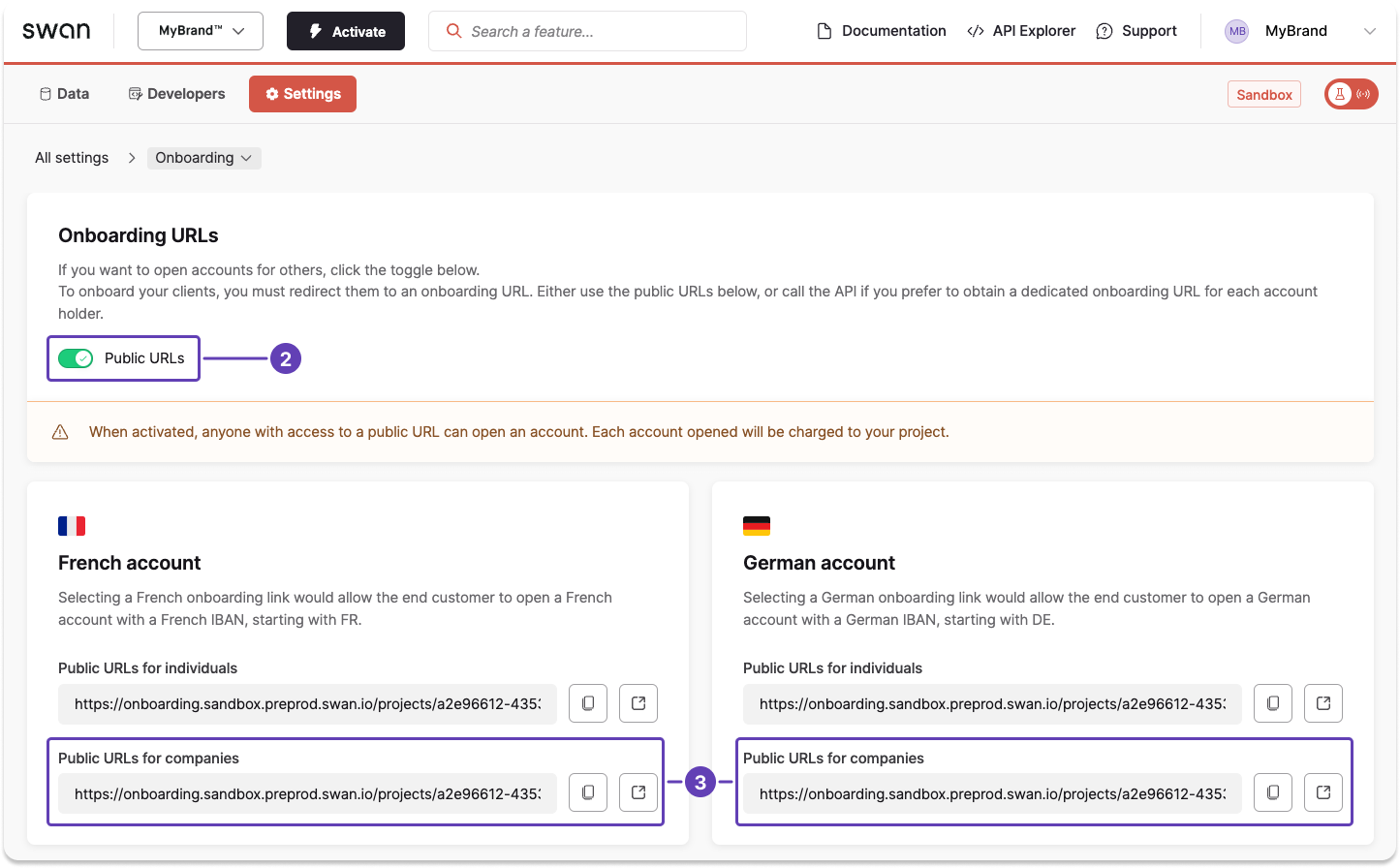
- On your Swan Dashboard, go to Settings > Onboarding.
- In the onboarding URLs section, toggle Public URLs to on.
- Notice the URLs that appear for individuals and companies for each account country.
Anyone could create an account using the public URL, and all accounts created are charged to your project.